There is a distinct point in every laptop's lifespan when true portability quietly disappears. What once delivered six or eight hours of untethered productivity gradually shrinks to two hours, then forty-five minutes, until you find yourself frantically scanning every room for an open AC wall outlet. Worse still, your laptop might report thirty percent charge remaining, only to black out instantly the moment you launch a video call or open a spreadsheet. When freedom from the power adapter vanishes, your mobile workstation effectively becomes an awkward desktop computer.
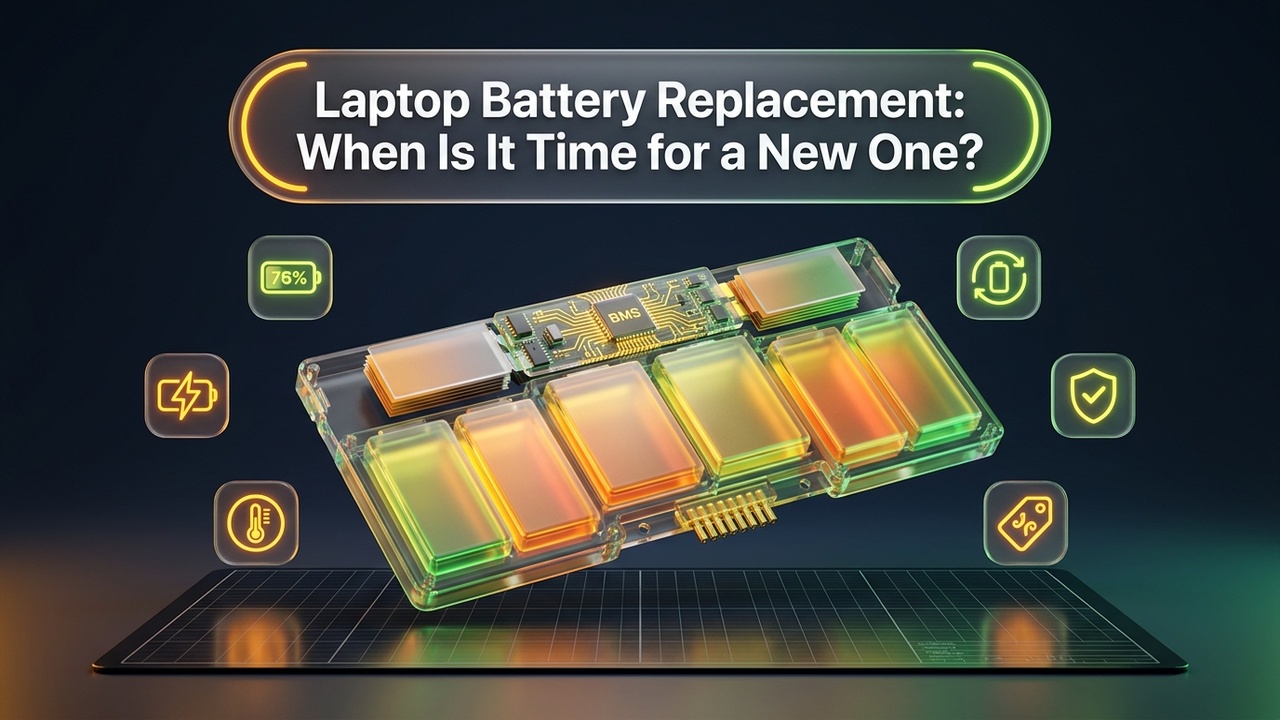
Every rechargeable power cell is a consumable chemical component with a finite operational lifespan. Experiencing rapid drain, sluggish performance under load, or sudden power cutoffs does not indicate that your computer is obsolete or ready for the recycling bin. In most cases, installing a fresh laptop battery completely revitalizes your machine, restoring all-day endurance, stabilizing CPU performance, and eliminating the hazardous risk of internal cell swelling. Understanding how electrochemical degradation occurs, recognizing urgent warning signs, and knowing when to replace the pack allows you to maximize device longevity without spending a fortune.
Specialized independent facilities like DC Phone Repair in Washington DC provide fast, dependable, and low-cost power restorations across Dell Inspiron and XPS, HP Pavilion and Spectre, Lenovo ThinkPad, Apple MacBook Air and Pro, ASUS, Acer, and gaming systems. By pairing certified Tier-1 replacement cells with professional cleanroom adhesive extraction, local technicians can restore factory battery life in under two hours at a fraction of manufacturer out-of-warranty depot pricing.
Electrochemistry 101: Why Laptop Batteries Inevitably Degrade
Modern laptops rely exclusively on lithium-ion (Li-ion) or lithium-polymer (Li-Po) cells due to their exceptional energy density, lightweight construction, and lack of the "memory effect" that plagued older nickel-cadmium batteries. However, lithium battery chemistry is governed by delicate electrochemical reactions that fundamentally deteriorate with every charge, discharge, and thermal swing.
Inside every lithium-ion cell, lithium ions travel back and forth between a graphite anode and a metal oxide cathode through a liquid or gel electrolyte. When you plug in your charger, ions migrate to the anode and store energy. As you use your laptop on battery power, those ions flow back to the cathode, releasing electrical current to power your processor, display, and memory.
Over time, this movement causes microscopic structural wear:
- Solid Electrolyte Interphase (SEI) Layer Growth: During repeated cycles, microscopic decomposition of the liquid electrolyte forms a resistive film called the SEI layer over the anode. While initially protective, this layer thickens over years, consuming active lithium and permanently reducing the total chemical capacity of the cell.
- Increased Equivalent Series Resistance (ESR): As internal components oxidize and the electrolyte dries, electrical resistance inside the cell climbs. Higher internal resistance means the battery must work harder to supply current, generating more waste heat and causing voltage to drop sharply whenever the processor boosts its clock speed.
- Electrode Micro-Cracking: The physical expansion and contraction of active cathode and anode materials during charge cycles induces microscopic fracturing, disconnecting portions of the active material from the electrical circuit.
Consequently, battery degradation is not a defect—it is an inescapable chemical reality. While software optimization can reduce hourly power draw, no update can restore chemically depleted lithium reserves once internal resistance climbs past operational limits.
Critical Warning Signs: When Is It Time for a New Battery?
Many laptop owners tolerate declining battery health until their machine suffers catastrophic power failure or physical chassis distortion. Recognizing the early, moderate, and critical symptoms of battery failure helps you schedule service before an aging pack damages other hardware.
1. Rapid Runtime Collapse Under Normal Workloads
The most obvious indicator is a severe decline in operational time. If a laptop that easily lasted an entire work or school day now drains completely in under an hour during basic web browsing and document editing, the cells have lost over 40% to 50% of their original design capacity. Continued use forces you into constant high-frequency charging, which accelerates the remaining chemical breakdown.
2. Sudden Power Cutoffs & Percentage Dropping
Does your laptop abruptly turn off without warning when the battery indicator displays 20%, 35%, or even 50%? This symptom indicates severe cell imbalance or elevated internal resistance. When your CPU or GPU requests a brief burst of power, degraded battery cells experience a sudden "voltage sag." The voltage dips beneath the motherboard's minimum power threshold (typically around 3.0V per cell), triggering an emergency safety shutdown to protect the electronics from uncommanded brownouts.
3. Swollen, Bulging Battery Packs (Urgent Safety Hazard)
A swollen battery is a critical physical emergency that demands immediate professional attention. When lithium-ion cells suffer severe degradation, overcharging, or excessive heat exposure, the liquid electrolyte breaks down into volatile gases—including carbon dioxide, carbon monoxide, ethylene, and hydrogen. Because modern lithium-polymer pouch cells are hermetically sealed in flexible foil bags, the trapped gas causes the battery to inflate like a small pillow.
Signs of internal battery swelling include:
- The laptop's trackpad becomes stiff, difficult to click, or physically pushes upward past the palm rest.
- The laptop wobbles on flat surfaces because the bottom aluminum or plastic case has bowed outward.
- Gaps, seam separation, or cracked screw mountings appear along the chassis edges.
- The keyboard develops a noticeable bulge in the center.
Safety Warning: Never squeeze, press, or attempt to puncture a swollen battery. Puncturing the outer foil allows ambient oxygen and moisture to react violently with the exposed lithium, resulting in thermal runaway, toxic fumes, and intense fires that cannot be extinguished with water. If your chassis shows signs of bulging, power off the machine, disconnect the AC charger, and bring it immediately to a certified repair facility for safe hazardous extraction.
4. Excessive Heat Generation During Charging
While laptops naturally generate heat under heavy computational tasks, a battery pack that becomes hot to the touch during simple charging indicates elevated internal resistance. Instead of converting electrical current into stored chemical energy, the degraded cells dissipate energy as dangerous resistive heat, stressing nearby solid-state drives, motherboards, and cooling assemblies.
5. Operating System Warnings & Service Notifications
Both Windows and macOS continuously monitor battery telemetry through the internal Battery Management System (BMS). When capacity or cell voltage stability crosses dangerous thresholds, your operating system will explicitly notify you:
- Windows 10 / 11: Displays a warning triangle over the taskbar battery icon reading "Consider replacing your battery" or "Battery health is degraded."
- macOS: Clicking the battery icon in the menu bar displays "Service Recommended," indicating that the pack is retaining less than 80% of its original design capacity or has developed an internal electrical fault.
How to Check Your Battery Health Like a Professional
Rather than guessing based on daily runtime, you can generate detailed, forensic diagnostic reports directly through your computer's built-in operating system tools.
Generating a Windows Battery Health Report
Windows includes a powerful hidden command-line utility that extracts historical charge capacity, cycle counts, and operational discharge logs:
- Right-click the Windows Start button and select Terminal (Admin) or Command Prompt (Admin).
- Type the following command and press Enter:
powercfg /batteryreport - Windows will output a file path (typically
C:\Windows\System32\battery-report.htmlorC:\Users\YourUsername\battery-report.html). - Open this HTML file in your web browser and inspect two critical numbers under Installed Batteries:
- Design Capacity: The factory-specified energy capacity when the battery was brand-new (measured in milliwatt-hours, mWh).
- Full Charge Capacity: The actual maximum energy the battery can chemically store today.
- Cycle Count: The total number of complete 100% discharge-and-recharge cycles logged by the BMS.
Divide the Full Charge Capacity by the Design Capacity. If the result is below 0.75 (75%), or if your cycle count exceeds 500 to 800 cycles, your battery has officially entered advanced degradation and is ready for replacement.
Checking macOS Battery Health and Cycle Counts
Apple MacBooks feature comprehensive battery telemetry integrated directly into the system software:
- Click the Apple Logo in the top-left corner and open System Settings (or System Preferences).
- Navigate to Battery and click the info icon (i) next to Battery Health.
- Review the Maximum Capacity percentage and Condition status.
- For deep hardware telemetry, hold the Option key, click the Apple menu, select System Information, and click Power in the left sidebar to view exact cycle counts, amperage draw, and individual cell millivolt readings.
Battery Health Stages & Degradation Comparison Table
The following technical matrix outlines the lifecycle stages of modern laptop batteries, the performance symptoms that emerge at each phase, and the recommended intervention:
| Health Stage | Capacity & Cycle Metrics | Observable User Symptoms | Recommended Action |
|---|---|---|---|
| Optimal / Factory Fresh | 100% – 85% Capacity (0 – 250 Cycles) | Full all-day battery life; cool operating temperatures; stable power delivery under peak CPU loads | Normal usage; avoid sustained 100% charge in high ambient heat |
| Moderate Aging | 84% – 75% Capacity (250 – 500 Cycles) | Noticeable 1.5 to 2.5 hour reduction in runtime; minor warming during rapid fast-charging | Enable battery conservation mode (80% charge limiter) in system software |
| Advanced Degradation | 74% – 50% Capacity (500 – 800 Cycles) | Runtime cut by over 50%; sudden cutoffs at 20-30%; OS service warnings appear; fan runs frequently | Plan replacement; avoid critical work without an AC adapter attached |
| Critical Failure / Swelling | Under 50% or Cell Rupture (800+ Cycles or Internal Gas) | Shuts down instantly when unplugged; trackpad lifting; keyboard bulging; excessive charging heat | Immediate replacement; cease charging to prevent thermal runaway hazard |
OEM vs. Generic Aftermarket Batteries: The Real Risks
When searching online marketplaces for replacement batteries, consumers are frequently tempted by bargain-basement generic packs costing $20 to $35. However, laptop power supplies represent high-energy-density systems that require precision electronics to operate safely.
Substandard counterfeit or ultra-cheap generic batteries present major engineering flaws:
- Substandard or Recycled Cells: Generic manufacturers routinely salvage depleted B-grade or recycled 18650 or pouch cells, relabeling them with inflated milliamp-hour (mAh) ratings. These cells often degrade completely within 30 to 60 days.
- Stripped-Down BMS Safety Circuits: Authentic OEM and premium-grade replacement batteries incorporate sophisticated Texas Instruments or Renesas microcontrollers that constantly balance cell voltages and execute over-voltage, over-current, short-circuit, and thermal runaway cutoffs. Cheap generics frequently omit temperature thermistors and cell-balancing circuitry, risking fire.
- Firmware Incompatibility: Modern laptops from Dell, HP, Lenovo, and Apple communicate cryptographically with the battery BMS. Cheap aftermarket boards trigger BIOS warnings such as "Non-genuine battery detected" or refuse to charge above 60% due to rejected digital security handshakes.
At DC Phone Repair, we exclusively source certified OEM-spec replacement batteries featuring Tier-1 grade-A cells (manufactured by industry leaders such as Samsung SDI, LG Chem, Simplo, or Panasonic) with complete, fully programmed BMS safety microcontrollers backed by full warranty protection.
Cost Comparison: Manufacturer Mail-In vs. DC Phone Repair
Sending a laptop back to the original manufacturer for a routine battery replacement is notoriously expensive, slow, and inconvenient. Manufacturers treat out-of-warranty repairs as low-priority depot tickets. In many ultrabook models (particularly Apple MacBooks and modern Windows ultra-thins), the battery is heavily glued directly to the aluminum top-case assembly. Manufacturer service centers routinely force customers to pay for an entire new palm rest, keyboard, and trackpad assembly—inflating costs to $250 – $350+.
In contrast, DC Phone Repair uses specialized chemical adhesive release agents and precision pneumatic tools to extract only the degraded battery pack, leaving your pristine keyboard, palm rest, and data untouched while cutting your total expenditure by more than half.
| Laptop Category & Model | Manufacturer Out-of-Warranty Cost | DC Phone Repair Affordable Rate | Direct Customer Savings |
|---|---|---|---|
| Standard PC Laptop (Dell, HP, Lenovo, Acer, ASUS) | $179.00 – $249.00 (Plus shipping & 2-week turnaround) | $69.00 – $99.00 (Same-day 1-2 hour service) | Save up to $150; fast walk-in turnaround; zero data wipe |
| Premium Ultrabook (Dell XPS, Lenovo X1 Carbon, HP Spectre) | $229.00 – $289.00 (Depot service requirement) | $89.00 – $129.00 (Same-day 1-2 hour service) | Save up to $160; exact OEM-capacity cells installed |
| Apple MacBook Air (M1, M2, M3 & Intel) | $199.00 – $249.00 (Apple Store out-of-warranty) | $109.00 – $139.00 (Same-day walk-in turnaround) | Save up to $110; clean adhesive removal; battery calibrated |
| Apple MacBook Pro 14" / 16" (Retina & Apple Silicon) | $249.00 – $329.00 (Requires top-case replacement) | $139.00 – $169.00 (Modular cell pack replacement) | Save up to $160; original keyboard & trackpad retained |
| High-Performance Gaming (ASUS ROG, MSI, Alienware, Razer) | $249.00 – $319.00 (Specialty mail-in center) | $99.00 – $149.00 (High-discharge rate cells) | Save up to $170; prevents thermal throttling under GPU loads |
The 5-Stage Professional Battery Replacement Workflow at DC Phone Repair
Replacing an internal laptop battery requires disciplined procedures to ensure user safety, maintain chassis integrity, and calibrate charging electronics for long-term reliability:
Stage 1: Pre-Service Telemetry & Charging Circuit Diagnostic
Technicians inspect the charging port (DC jack or USB-C Power Delivery controller), measuring input voltage and charging current with an inline digital multimeter. We test for motherboard charging MOSFET shorts or power management IC (PMIC) faults to confirm that the failure stems from the battery pack rather than the motherboard's charging circuit.
Stage 2: Precision Disassembly & Electrostatic Grounding
The laptop is grounded on anti-static ESD mats. Technicians extract the lower chassis casing using precision Torx and Phillips drivers, immediately disconnecting the battery terminal cable from the motherboard before touching any other component to prevent accidental voltage spikes.
Stage 3: Chemical Adhesive Dissolution & Safe Extraction
For modern laptops featuring glued-in battery packs (such as MacBooks and Dell XPS models), pulling or prying with metal tools can puncture the thin pouch foil, sparking a dangerous thermal fire. Technicians apply a specialized, non-conductive chemical adhesive remover that dissolves structural bonding tape within minutes. The battery lifts free smoothly without mechanical stress or bending.
Stage 4: OEM-Spec Installation & Structural Re-Bonding
The battery bay is chemically cleaned of all residual adhesive and debris. Technicians install a certified Tier-1 replacement battery, applying pre-cut industrial acrylic bonding strips that prevent the pack from shifting during daily transit. The high-current terminal cable is locked into the motherboard socket, and the chassis is reassembled with factory-calibrated torque.
Stage 5: Full Charge Calibration & Thermal Burn-In Verification
Before releasing the laptop to the customer, we execute a full calibration cycle. The battery is charged to 100%, held under continuous load, and monitored with thermal imaging to verify that the internal BMS fuel gauge synchs perfectly with the operating system, ensuring accurate percentage readouts and whisper-quiet charging thermals.
Best Practices to Prolong Your New Laptop Battery's Lifespan
Once your new battery is installed, simple operational habits can double its operational lifespan:
- Avoid the Deep 0% Discharge Trap: Letting your battery drain completely to 0% places immense electrochemical strain on the anode and can trigger a permanent low-voltage safety lock in the BMS. Try to plug in your laptop when charge dips around 20%.
- Utilize Manufacturer Battery Limiters: If you use your laptop primarily plugged into a desk dock, enable the built-in charging threshold feature in your software (e.g., Dell Command Power Manager, Lenovo Vantage Conservation Mode, ASUS Battery Health Charging, or macOS Optimized Battery Charging). Capping maximum charge at 80% dramatically reduces electrolyte breakdown and can extend battery lifespan by two to three years.
- Keep Your Laptop Off Soft Bedding: Operating or charging a laptop on blankets, duvets, or pillows chokes bottom cooling intakes. Heat is the number-one killer of lithium battery cells; always charge on a hard, flat surface.
- Use High-Quality OEM Chargers: Cheap unbranded USB-C chargers produce dirty electrical ripple and fluctuating voltage spikes that degrade battery health prematurely. Always use OEM-certified power adapters with proper Power Delivery (PD) negotiation.
Why DC Phone Repair Is Washington DC's Top Choice for Laptop Services
Device owners throughout Washington DC, Anacostia, Capitol Hill, Navy Yard, and the greater DMV metro area trust DC Phone Repair for four core reasons:
- Unmatched Affordability: With replacement battery services starting at just $69, we deliver honest, upfront pricing that saves our clients over 50% compared to manufacturer out-of-warranty fees.
- Same-Day 1 to 2 Hour Turnaround: Because we stock a wide selection of high-grade OEM-spec battery packs in-house, most repairs are completed the exact same day you drop off your laptop.
- Zero Data Risk: Your personal data, work documents, and system software remain 100% private and untouched during all battery services.
- Comprehensive 90-Day Warranty: Every replacement battery and installation is protected by our full 90-day parts and labor warranty against premature capacity loss, defects, or charging errors.
- Complete Hardware Expertise: Beyond power services, our certified engineers handle comprehensive device restorations, including cracked laptop screen repair, laptop running slow optimization, and desktop computer repair services.
Revitalize Your Laptop Today at DC Phone Repair
Don't let a dying, tethered, or swollen battery compromise your productivity, mobile freedom, or personal safety. Whether your machine lasts thirty minutes, shuts off unexpectedly, or requires urgent hazardous swollen cell extraction, our certified technicians are ready to restore full-day endurance today at unbeatable low prices.
Walk in directly, call our technicians, or schedule your repair online for a free, transparent diagnostic estimate:
DC Phone Repair
2704 Marion Barry Ave SE,
Washington DC 20020, United States
Phone: (202) 478-4799
Website: https://dcphonerepair.com/
Hours: Open Daily from 10:00 AM – 10:00 PM
Frequently Asked Questions About Laptop Battery Replacement
How long does a professional laptop battery replacement take?
At DC Phone Repair, most standard laptop battery replacements take between 1 and 2 hours. Because we stock high-capacity OEM-spec replacement batteries for Dell, HP, Lenovo, ASUS, Acer, and Apple MacBook models, you can typically drop off your laptop in the morning and pick it up fully calibrated on the same day.
Is a swollen laptop battery dangerous to leave inside my computer?
Yes, a swollen battery poses a severe fire hazard and can permanently damage your laptop chassis, trackpad, and keyboard. The swelling is caused by trapped combustible gases produced by chemical decomposition. If the swollen pouch cell is pinched or punctured by an internal screw, it can ignite into a violent thermal runaway fire. Disconnect your charger immediately and bring it to DC Phone Repair for safe removal.
Will replacing the laptop battery erase my files or operating system?
No. Replacing a battery is strictly a power hardware replacement. Your internal solid-state drive (SSD), operating system, files, photos, applications, and saved settings remain completely untouched. Your laptop will be ready to work immediately upon pickup with all your data intact.
Why does my laptop say "Plugged in, not charging" with my current battery?
A "Plugged in, not charging" error usually occurs when the battery's internal Battery Management System (BMS) detects a critical cell failure and disables charging for safety. Alternatively, it can indicate a blown charging MOSFET on the motherboard or an unauthenticated third-party battery. Our technicians test your charging circuitry and battery telemetry to identify the exact cause and resolve it at minimal cost.
Can I continue using my laptop if it only works while plugged into the charger?
While a laptop can technically function as a desktop on AC power, running on a dead or chemically unstable battery is risky. Degraded cells can swell without warning, and any minor power interruption or accidental cord pull can cause sudden shutdowns that corrupt open files or damaged Windows and macOS system updates. Replacing the battery restores safety, performance stability, and mobile portability.
Need Fast & Reliable Device Repair in Washington, DC?
Don't let a cracked screen, dying battery, or faulty charging port slow you down. Our certified technicians provide same-day diagnostics and repairs using premium replacement parts backed by our comprehensive warranty.
Phone: (202) 478-4799 | Open Daily: 10:00 AM - 10:00 PM